Obsidian + Claude Code: The Setup I Use Every Day
When I started working with LLMs i kept running into an issue many people will be familiar with: The longer you keep a chat going, the less productive it becomes, at some point you are forced to migrate to a new chat and you have to start from zero with the model. Point Claude Code at your Obsidian vault instead, and the same work lands in plain files on your own computer, where it can stay and compound.
This works because relevant information can be externalized to files which both of you can easily access. You can read it, and so can Claude. What accumulates is a shared memory. Neither of you needs an abstraction layer in between, and that matters more than it sounds (more on this later).
I’m going to walk you through how it works: what it looks like on screen, how I organize the vault, and where it works well and where it doesn’t. You do not need special plugins, no MCP server, and you don’t have to be a developer. You don’t need to pay for anything other than a subscription to Claude, or to any other language model provider.
What does the setup actually look like?
My day to day setup looks like this: I have Obsidian open, and Claude Code. If I have a big enough screen, I like to view them at the same time. I have Claude open on the left. I mostly use a dictation tool to talk to Claude (read my best dictation tool for Mac article if you want to know more), or just use wisprflow or something like that. And on the right side I have my vault.
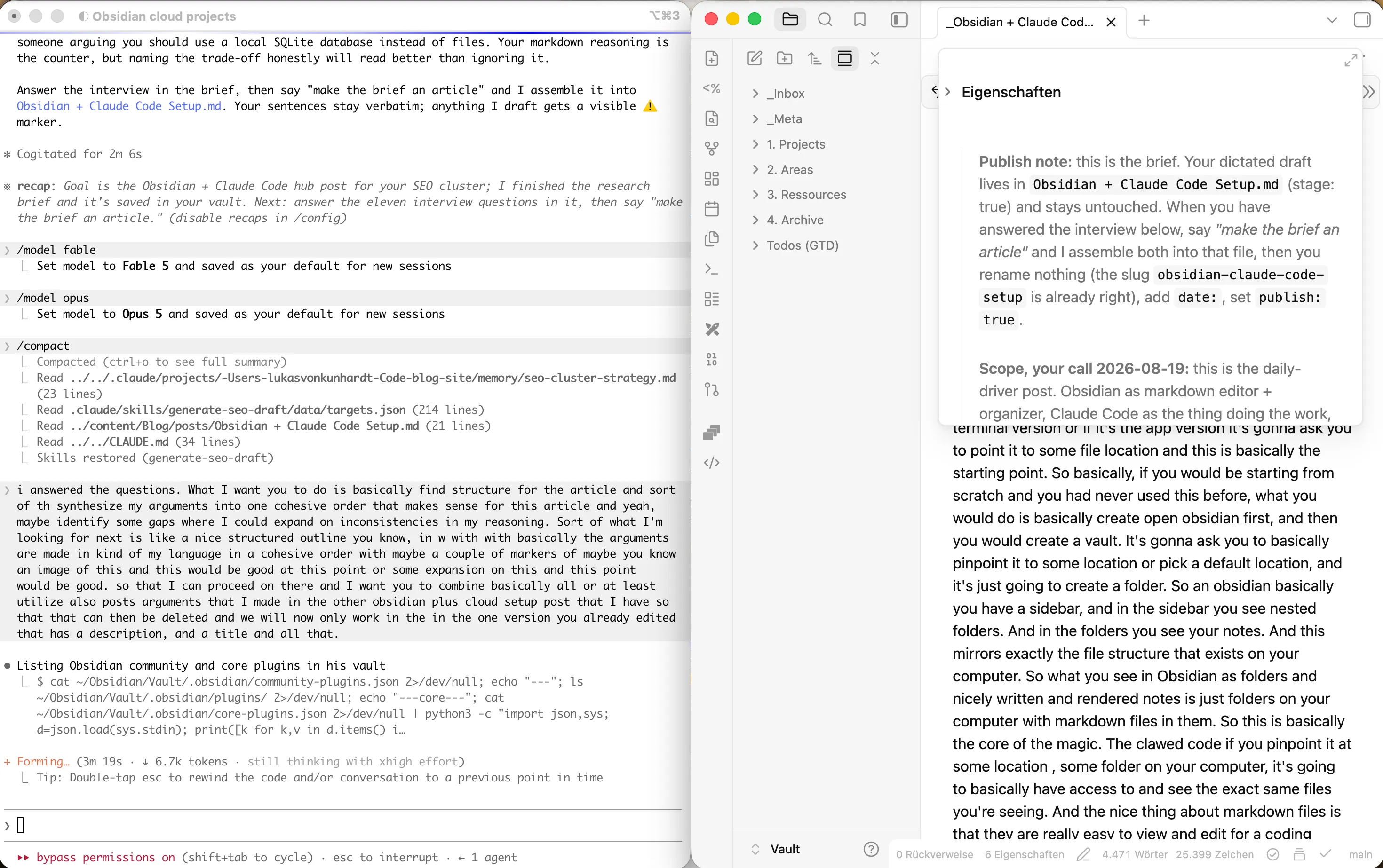
I use Obsidian for viewing the outputs of whatever Claude is writing. The idea is that Obsidian is a markdown viewer and editor. It allows me to have a sort of collaboration with Claude, where I can worka in it like in Google Docs.
I use this for all kinds of projects: work, personal, anything, writing. The project itself doesn’t have to be text-based. Your thinking about it is, and so is your conversation with Claude. So the habit is simple: every time I work something out about a project, it goes into some note in that project’s folder, and every time Claude works something out worth keeping, it goes into the same folder. That is what gives Claude the same picture of the project that I have. And the folder of markdown notes is better at retaining information than either of us. I tend to forget what I decided last March, and Claude remembers nothing outside the current chat context.
How does Claude Code see my notes?
First of all, you have to understand the concept of Claude Code and how it’s different from the Claude chat. In Claude Code, you start by opening a folder. No matter where you use Claude Code, whether it’s the terminal version or the app version, it’s going to ask you to point it to some file location, and this is the starting point.
If you were starting from scratch and had never used this before, you would open Obsidian first, and then you would create a “vault”, which is the parent folder all of your files will be collected in. In Obsidian you have a sidebar, and in the sidebar you see notes and nested folders. If you open your vault with a file explorer, you can see this mirrors exactly the file structure that exists on your computer. What you see in Obsidian as folders and nicely written and rendered notes is just folders on your computer with markdown files in them. This is the core of the magic. If you point Claude Code at some folder on your computer, it’s going to have access to, and see, the exact same files you’re seeing.
Say you wanted to start some project, and it’s going to be a more complicated one: some research project, some new project for work, whatever. You would create a new folder in your vault, and in this folder you might collect notes for anything relevant to this project. And the nice thing is: if you now switch to Claude Code, you can point it at the same folder location, and then it’s going to see everything you’re writing. And it can also edit and suggest changes to your own writing.
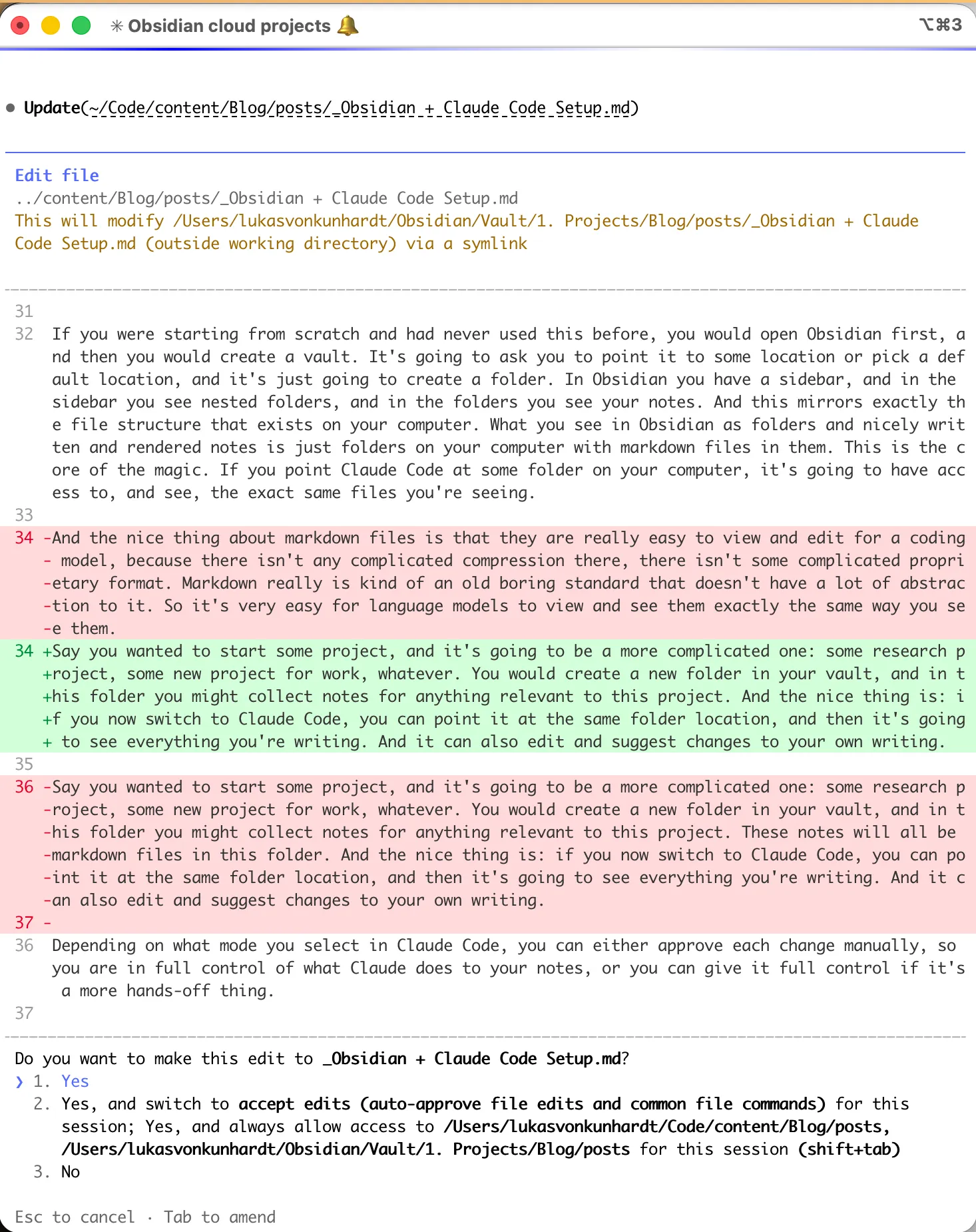
Depending on what mode you select in Claude Code, you can either approve each change manually, so you are in full control of what Claude does to your notes, or you can give it full control if it’s a more hands-off thing.
Do you need the Obsidian Claude Code plugin or an MCP server?
Short answer: No.
If you work on your computer and you have Claude there and you have Obsidian there, then there’s nothing else you need to do. Because Obsidian just looks at files on your machine, and Claude Code natively, by design, is supposed to work with files on your machine. They are a match made in heaven. They are directly complementary to each other.
What is on offer falls into three groups, and it helps to know which one you are looking at.
The first group runs Claude Code inside an Obsidian sidebar. I don’t see the point. Having two windows open is not something you need a special app for.
The second group are editor context bridges, which tell Claude which note you have open and what text you have selected. That is at least a real gap, but it is easy enough to just tell Claude which file you mean, and if you follow the convention of working in one project folder it stops mattering much. If the files you need are scattered across your whole vault, it is worth more.
The third group are MCP servers that expose your vault to other apps, and this is the one worth being clear about. Claude Code can read your files. The Claude desktop app in chat mode cannot, so people connect an MCP server to Obsidian to fix that. But that is the long way around to somewhere worse. Just use Claude Code instead of Claude Chat so that it natively has access to your files without requiring an MCP middle layer. Else you give up most of the advantage this whole setup is built on.
There is one case where I do use one. I have the Local REST API plugin enabled because I had Claude Code running on a server, posting updates into a note in one of my projects about how a website was performing. If you have a site on a server somewhere and you want a weekly report to land in that project’s folder, that is genuine: something outside your computer needs to write into your vault. Editing your vault from your phone is the same shape of problem. It is a different problem from the one this article is about.
Why markdown, and not Notion or Word?
Take a comparison. If you were to use Notion with a Notion MCP server, you would have a similar looking setup, at least on your side. You already know how to navigate Notion and how to write there, so your half of the interaction would not change much. But for Claude it changes a lot, because Claude does not see Notion documents as files in a folder. Instead it must go through an MCP server or an API to interact with Notion, and the same is true of any note taking tool that does not store your notes in an easily legible format on your own device.
That has several disadvantages. The model spends far more tokens and thinking on the question of how to reach the files at all, which is unnecessarily difficult. Every abstraction layer you introduce makes it harder.
If a model wants to find text somewhere on your computer, it can use something like “grep”. grep is a search tool that has been sitting on every Mac and Linux machine for about fifty years. It looks inside your files, not just at their names, and it goes through thousands of them in well under a second.
That opens up a lot. Claude can find every note in a client folder that mentions one supplier, across hundreds of subfolders, without you remembering which note it was in. It can list every note you have not touched since March. It can find the notes that mention two things at once, which is the question you can never answer with a search box. It can ask for every file longer than a certain length, or rename fifty notes to match a convention.
None of that needs a plugin, an installation, or any special tool. These are basic command line commands, from the same generation as grep, and the model has seen them used more times in its training data than almost anything else. It is fluent in them the way it is fluent in English. The Notion MCP server, by comparison, did not exist two years ago, and it is complicated to use, so the model has to work out how to drive the tool at the same time as it does your actual work. The files are just there, in the same folder Claude Code runs in.
Here is the proof that this is the model’s own preference and not just mine. Ask Claude Code to write something down, store it for later, keep it as a reference document. What kind of file do you think it creates? Markdown. You don’t have to change its ways at all.
You could also work with Word. But Word files are in a proprietary format. In order for Claude to read one, it has to run a Python script to unzip the contents of a .docx file. That makes every read and every edit more complicated, and Claude spends tokens and thinking on that layer instead of on your work. If you have been trying to get Claude to edit your Word files, you will have noticed the difference.
Here is what that looks like. Finding every note that mentions one supplier, in markdown:
grep -ril "acme" .The same search, on Word files:
import zipfile, re, pathlib

def docx_text(path):
    with zipfile.ZipFile(path) as z:
        xml = z.read("word/document.xml").decode()
    return re.sub(r"<[^>]+>", " ", xml)

for path in pathlib.Path(".").rglob("*.docx"):
    if path.name.startswith("~$"):   # Word lock files
        continue
    if "acme" in docx_text(path).lower():
        print(path)
That version still misses anything in a header, a footer or a comment, because Word keeps those in separate files inside the zip.
And for you it is also quite convenient, because Obsidian is genuinely fun to use. It looks nice and it has most of the functionality you need. A little less than Notion, a little less than Word, but it is the lowest common denominator in the good sense: for both of you it is just really good to work in. It is a very fleshed out notes app with high customizability. PDFs it displays out of the box, with nothing to install. For most other file types there is a plugin:
- “CSV Editor” for comma separated tables
- “Sheet Plus” or Excel for spreadsheets
- “ePub Reader” for books
- “Annotator” if you want to highlight a PDF rather than just read it.
What is the actual benefit over a normal Claude chat?
Where do the fruits of your labor, the results of the interaction with Claude, actually get stored? If you’re using Claude as basically a pimped-up version of Google to answer singular questions, you aren’t getting half of what you can out of it. That’s really the advantage that Claude plus Obsidian has: it allows you to work on long-term projects and to build up a shared knowledge base that you and Claude can interact with, which for any complicated task is going to be necessary.
Here is an example: Some time ago I came onto a large enterprise project in a field I knew very little about. In the first weeks I was sent an enormous amount of material, and there were so many new people to memorize. In the meetings I did not get most of what was being explained to me. They would mention fifteen people I did not know yet, sometimes the same ones from a meeting two hours earlier, and I still did not remember them. a couple of weeks in, that one folder holds a hundred transcripts and about three hundred wiki pages.
Claude organized all of it into a wiki inside that folder, and it started to make sense so much sooner. I could ask my questions there instead of being the guy who asks stupid questions all the time. I could spend a day on “explain back to me what all these files were, and what did they mean by this term I keep hearing”, and the answer came back with its receipts: you discussed it in that meeting, and the document they sent five days ago describes it on page 90. They gave me the feedback that they found it amazing how quickly I started to get things, in a field everyone knew was hard to get into.
I also got into the habit of transcribing the meetings and storing them, so I can query backwards. What did I discuss with this person at the start, what was their opinion then, and what is it now? When was the first time we talked about this? Those are easy to answer now and close to impossible otherwise.
None of that needs a special feature. You point the model at a section of your project folder and let it build its own interlinked wiki, which it updates every time a new transcript or document arrives. I described that system in My favorite memory system for LLMs, and it ships as skills you can install.
One thing on confidentiality, since I said enterprise. Nothing in this setup depends on Claude. The notes are plain text in a folder on your own machine, so if your client has not approved Anthropic, you swap the model and keep everything else exactly as it is. Use whatever they have whitelisted, or a provider hosted in the region they require. Claude Code itself also runs through Amazon Bedrock, Google Cloud or Microsoft Foundry, which is often what a corporate security review has already signed off on.
Doesn’t this lock you into Claude?
It does the opposite, and this is a major advantage for me. I don’t want to lock myself in with one provider.
That is the other disadvantage of having most of your knowledge hidden away in some chat. Even if you work with Claude Cowork and Claude Projects, or with Codex and ChatGPT Projects, they all share the same problem: if they get expensive, or there is a better deal somewhere, or a better model you would rather be using, the migration becomes difficult. Unless nothing interesting is actually stored in the model provider’s app, and everything is in files on your computer anyway. Then it is easy. You can migrate in a blink.
I can swap out my provider tomorrow. It doesn’t actually matter to me. I use Claude right now only as the inference provider for the model: not to organize my projects, not to store knowledge somewhere, not to keep some sort of memory on me. All of that sits in files that I own, on my personal computer, that I have full control over. I wrote more about that in How to avoid locking yourself into one AI provider.
Wouldn’t a database be better than markdown files?
I don’t think so. I don’t think vector search is that useful unless you have massive amounts of text data. And the database comes with a massive disadvantage: you not being able to quickly interact with it. The main advantage is that markdown and the file system convention is something that you and Claude can both work in really well. If Claude is down and you’re offline, you still have all of your notes, you have all of your insights, to easily work with. And when Claude becomes better and maybe you do much less of the editing yourself, nothing about that changes. It will still be great at reading and working with markdown, and so will you.
How do I organize the vault?
I organize the vault by the PARA principle. It’s a principle designed by Tiago Forte for organizing basically anything in your life: all your notes and all writing and all files. I find it really useful. He describes it in his book Building a Second Brain. It splits things into four categories, sorted by actionability: Projects, Areas, Resources, and an Archive.
Projects are the things you are working on now, the ones that have an end. Areas are ongoing responsibilities that never finish: your health, your finances, each client relationship. Resources are topics you keep for reference, like reading notes and snippets. The Archive is where anything finished or gone quiet from the other three ends up.
I organize every project that I start, a project being anything that involves more than one step. There are large projects that I have with clients, with hundreds of subfolders, and there are also small folders, like planning a weekend or something. Everything gets its own folder.
Obsidian is open on the whole vault, so I see all of it at once: the four categories at the top, and every note inside them.
Which folder do you open Claude Code in?
Not at the vault. This is the one part worth being precise about, because the two windows do not look at the same thing: Obsidian sees the whole vault, Claude Code sees one folder.
I never point it at my entire vault, I always point it at the one specific folder I am working on. That is usually a project, but it can just as well be one area or one resource. And this only works if you actually have a folder for each project you work on, or for every resource, or for every area. That’s why I think the whole PARA sorting mechanism works especially well: sorting the folders by actionability makes them especially well suited, because there is basically always a folder for any given topic that I would want to discuss with Claude. Actionability is the perfect thing to sort by if you want folders to directly match your working sessions. So the shared memory is not one big pile. Every folder builds its own, across as many sessions as the work takes, and Claude starts each session already inside the only context it needs.
None of this locks Claude into that one folder. The folder you open is a starting point, not a fence, and Claude Code can still reach anything else on your machine when you tell it to. Say the project is finishing this year’s tax declaration, and half of what I need is in a resources folder called finances. I mention that folder once and it uses both for the rest of the session.
Do you need a CLAUDE.md in your vault?
You could, of course. You could explain conventions or something like that, but I think you mostly don’t need to, because the vault has a pretty simple structure. Projects, areas, resources and the archive are so different in nature that I didn’t have any sort of things that would apply to everything. And I think the models have gotten smart enough that you don’t need to explain their environment to them. They figure it out best on their own. So no.
But then again, you could: you could specify for example a tone or writing style, or conventions to be used, or what type of notes are read-only to the model, all kinds of things. Just like in a coding repo, you could have these sorts of conventions in your writing vault.
How do you and Claude edit the same note without overwriting each other?
With markdown files, there is a built-in protection in Claude Code that stops it from overwriting changes. When you edit a markdown file and the model wants to make changes to it, it gets notified that the file has changed and is forced to read it first before editing it. This allows you to work in the same document as the LLM without having to worry about the model deleting your work.
Claude is no longer allowed to overwrite files that have changed since it last looked at them. This problem basically solves itself. I think it’s basically become a default.
And there is the Obsidian Git plugin, which automatically syncs my entire vault to git. Because Claude is great at using git, if I tell it to restore some previous version, it does so reliably.
Which Obsidian plugins do I actually use?
Fifteen, but only a few of them matter for this setup. Obsidian Git is the important one: it versions the whole vault automatically, which is what makes “Claude, restore the previous version” work at all. After that it is CSV Editor for tables, Excalidraw for sketches, Tasks and Kanban for task lines and boards, Templater and QuickAdd for note templates and capture shortcuts, Dataview for queries across notes, and Marp Slides when I need a deck out of markdown. The rest are theme and interface tweaks that have nothing to do with Claude.
What does this look like on the phone?
I can sync Obsidian to my phone automatically (this is Obsidian Sync, and it does cost money, about 4 dollars a month, which is quite cheap), so that I have all the notes on each project on my phone and can edit them on the go. If I want to jot something down on my phone while I’m on the train or on the run, I can do so, and it will appear later on my desktop. I don’t really work from my phone when I’m traveling. Mostly I use my computer for working. But you could do this on your phone, probably.
What does not work?
I just want to be honest about what doesn’t work so well. What this is not good at is working with projects that are mostly not text, or that just don’t support markdown. You are kind of bound by file type. Just think about what your primary mode of working is. If you work 90% of your day in Excel, this setup is going to be less useful than if you mostly work with text and PDFs.
Obsidian is great at having even thousands of markdown documents for you to quickly navigate and read. But other file formats it is not so optimized for. Obsidian displays PDFs out of the box, and there are plugins for annotating them. But if your primary mode is working in PDFs, highlighting them because you need to send them back in PDF format, or if they are image heavy, I don’t know if this would be the best solution for you. And if you have a lot of them, Obsidian Sync doesn’t support large vault sizes, and Obsidian becomes noticeably slow. Also tables, Excel files, don’t really work. If that happens, you can hide the heavy folders from Obsidian with a community plugin called Ignore. It gives you a .obsidianignore file that works like a gitignore for non-coders.
Obviously there are also workarounds, because if you’re working with text-based PDFs, for the most part you can just extract them to markdown files, and that has the advantage of you being able to edit them. For example, if you were to prepare a research paper or thesis statements or something like that, I would probably just use some tool to extract the text from the PDFs, then store the resulting markdown files in my vault, and then Claude would be very good at quickly finding information even in thousands of different source documents you collected.
Do you have to be a developer?
No. On your side, Claude Code barely looks different from the Claude chat. You type, it answers. The whole difference is hidden in what the model can reach: instead of a constrained chat window where it has the internet and not much else, it has your file system.
There is nothing to set up for that and no commands to learn. You can learn them, and people have a lot of tricks for getting more out of it, but none of that is the entry price. It works out of the box.
Developers use Claude Code more because it drops straight into a workflow they already have. Knowledge workers underuse it, and I think that is the wrong way round, because the ability to persist what you find, and to run a bit of code on the side when you need a result, is worth more outside of engineering, not less.
How do you start?
What I would suggest: do not worry about doing some tutorial. Hand over most of the work to Claude. Just open Claude Code and tell it that you want to start using Obsidian and Claude Code together, and that it should walk you through it. Claude has no shortage of patience and is great at researching how people are using this online currently. You don’t really have to figure it all out before you can start using it. You can start using it and use Claude to teach you how it works.